




STEP 1
Click “Me”.

STEP 2
Click “Recharge / Withdraw”.

STEP 3
Click “Switch to USD Currency”. (If it's already in USD, there's no need to exchange.)

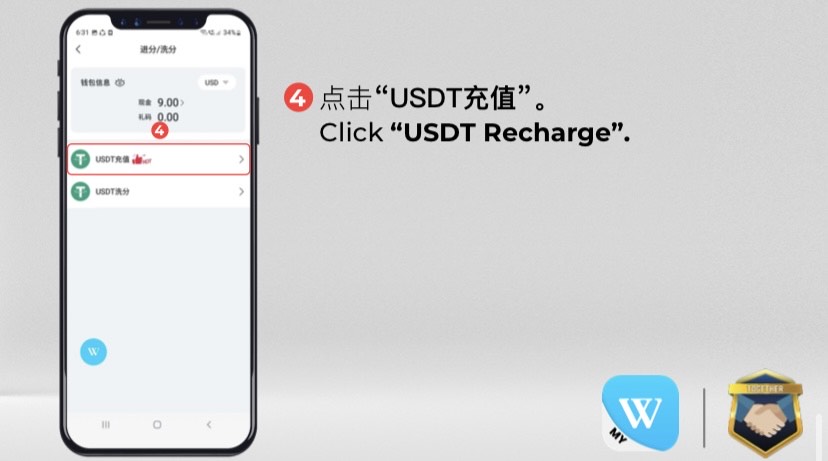
STEP 4
Click “USDT Recharge”.

STEP 5
Enter “Top Up Amount”.

STEP 6
Click “Next”

STEP 7
Select “Same Payment Zone Network”.

STEP 8
Copy “Amount Button”.

STEP 9
Use “Virtual Currency Platform to Scan QR Code”.

STEP 10
Copy “USDT Address Button”.
- Customers can choose to use scan QR code or copy the USDT address to transfer to the virtual platform.
- A new address is generated for each recharge round.

STEP 11
Actual “Top Up Amount”.

STEP 12
Actual“Received Amount”.
STEP 1
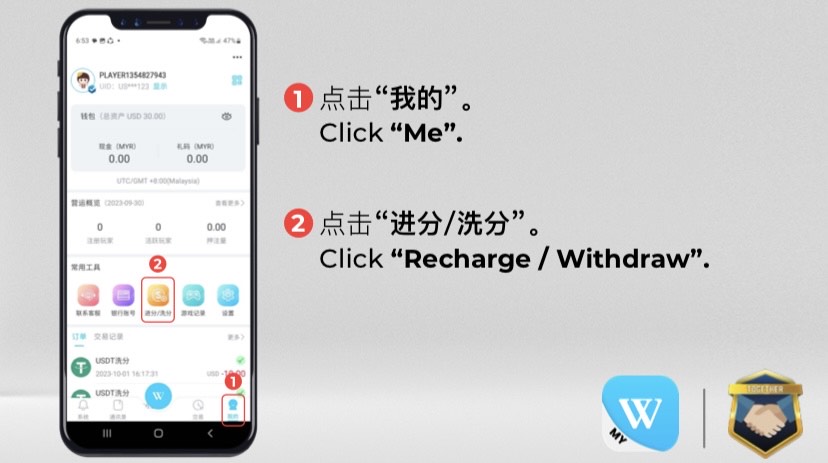
Click “Me”.
STEP 2
Click “Recharge / Withdraw”.
STEP 3
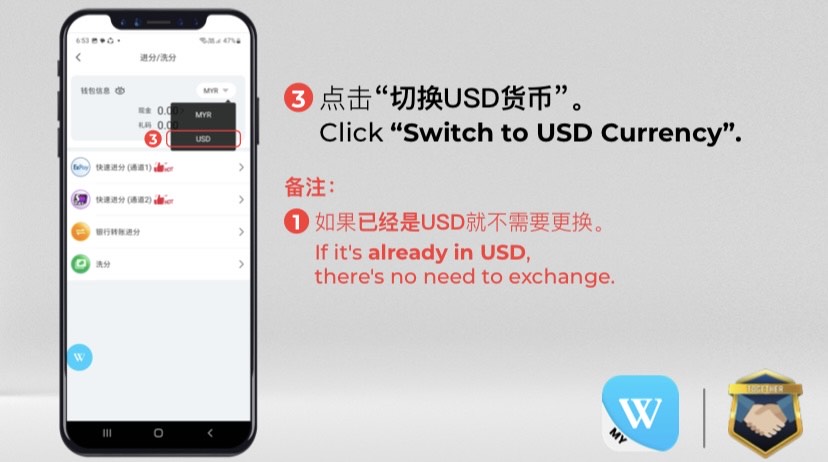
Click “Switch to USD Currency”. (If it's already in USD, there's no need to exchange.)
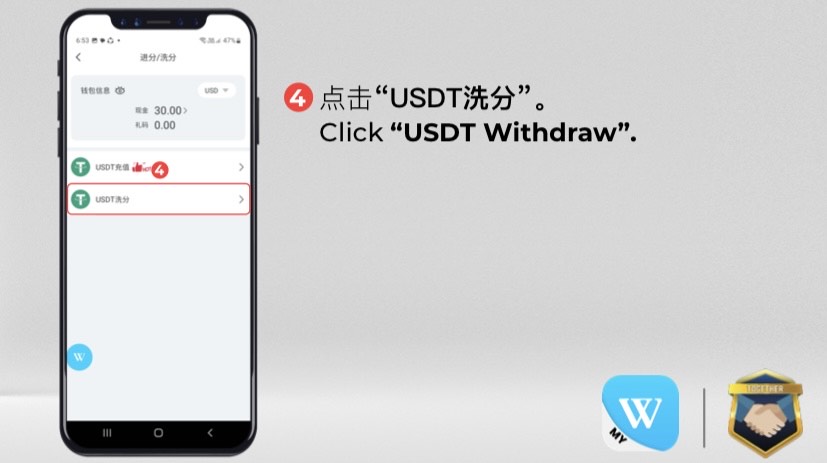
STEP 4
Click “USDT Withdraw”.
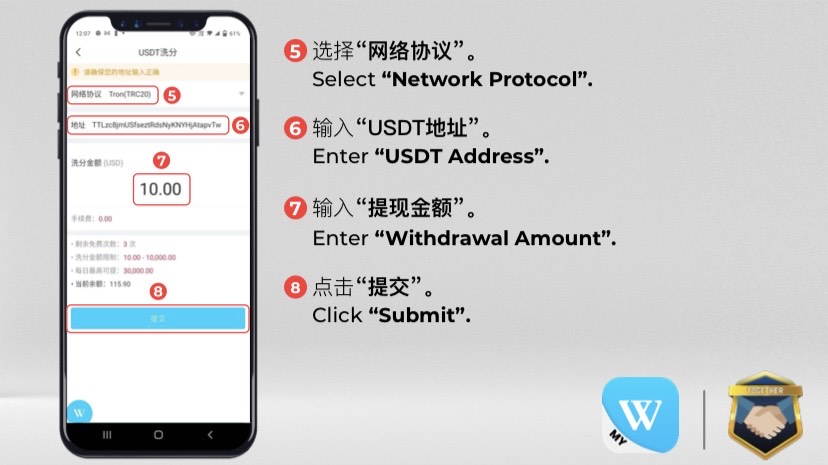
STEP 5
Select “Network Protocol”.
STEP 6
Enter “USDT Address”.
STEP 7
Enter “Withdrawal Amount”.
STEP 8
Click “Submit”.
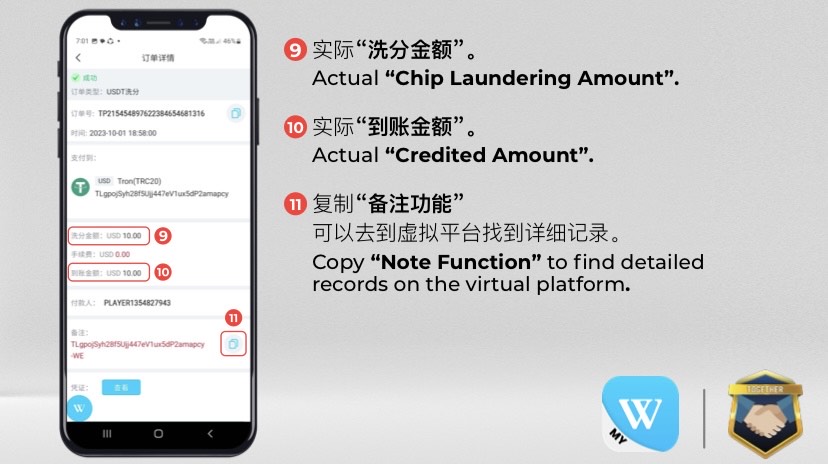
STEP 9
Actual “Withdrawal Amount”.
STEP 10
Actual“Received Amount”.
STEP 11
Copy “Note Function” to find detailed records on the virtual platform.
